Some weeks an attachment has data. Other weeks it's empty. You probably don't want to send an empty spreadsheet, but you also don't want to drop the whole report just because one file came back blank.
Conditional attachments solve this. You add a condition to each file on an email or Slack report, and PushMetrics checks the file before the message goes out. If the condition passes, the file is attached. If it doesn't, that one file is left out and the rest of the email or Slack message still sends.
A condition can be as simple as "only if there's data", or a SQL query if you need something more specific.
Which attachments support conditions
Conditions work on data-based attachments, which are the files that have rows and columns behind them. You can add a condition to any CSV or Excel (XLSX) attachment produced by these tasks:
- SQL Query
- Tableau Export
- Explore
- File Download
- Data Source
Tableau image (PNG) and PDF exports are also supported, with one extra step. Since an image or PDF has no data to query on its own, you turn on Also fetch data on the Tableau task first. See Conditions on Tableau images and PDFs below.
Tableau workbook PDF exports support the Skip if empty check only. The file is attached when any view in the workbook has data. See Conditions on Tableau workbook PDFs below.
Attachments that aren't data files, such as Word (DOCX) or Google Slides (PPTX) exports, don't support conditions and are always sent.
Where to find conditional attachments
Conditions live on the Email and Slack tasks. Open the block and expand Advanced Options. You'll find a Conditional attachments section that lists every file the message attaches, each with its own toggle. It works the same way on both tasks.
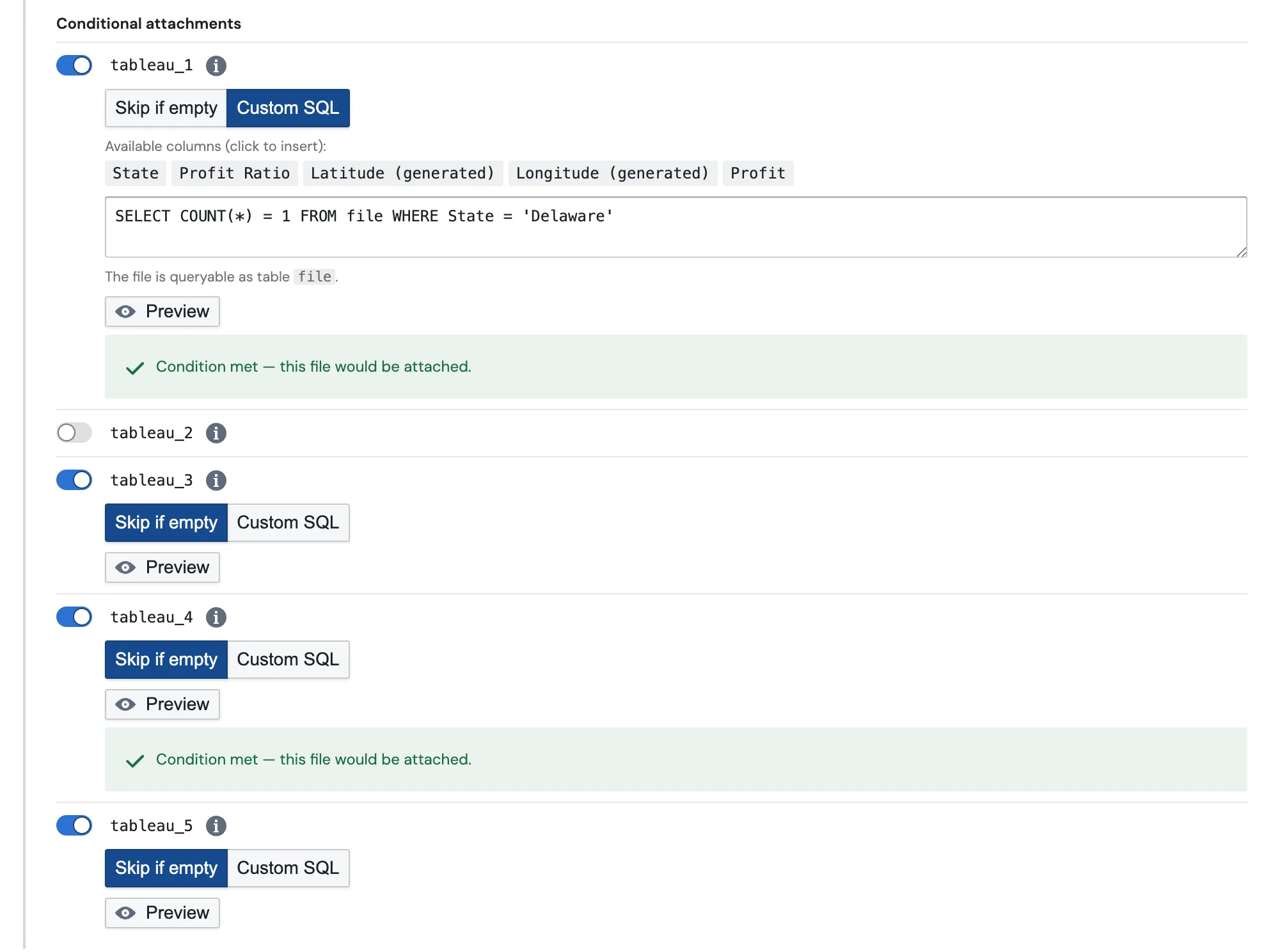
Turn on the toggle for an attachment to add a condition. Any attachment you leave off is always sent, exactly like before.
Skip empty attachments
The default option is Skip if empty. The file is attached only when it has at least one row of data. If the export comes back empty that week, PushMetrics leaves it out and moves on. No SQL required.
This handles the most common case on its own: don't send this file if there's nothing in it.
Write a SQL condition
When you need more than a simple empty check, switch to Custom SQL. You write a query against the file, which is available as a table called file. The query should return a single true or false value. If it's true, the file is attached. If it's false, it's skipped.
SELECT COUNT(*) > 0 FROM file
SELECT COUNT(*) > 100 FROM file WHERE region = 'EU'
The Available columns chips above the editor show the file's real column names. Click one to drop it into your query so you don't have to remember exact spelling or capitalization.
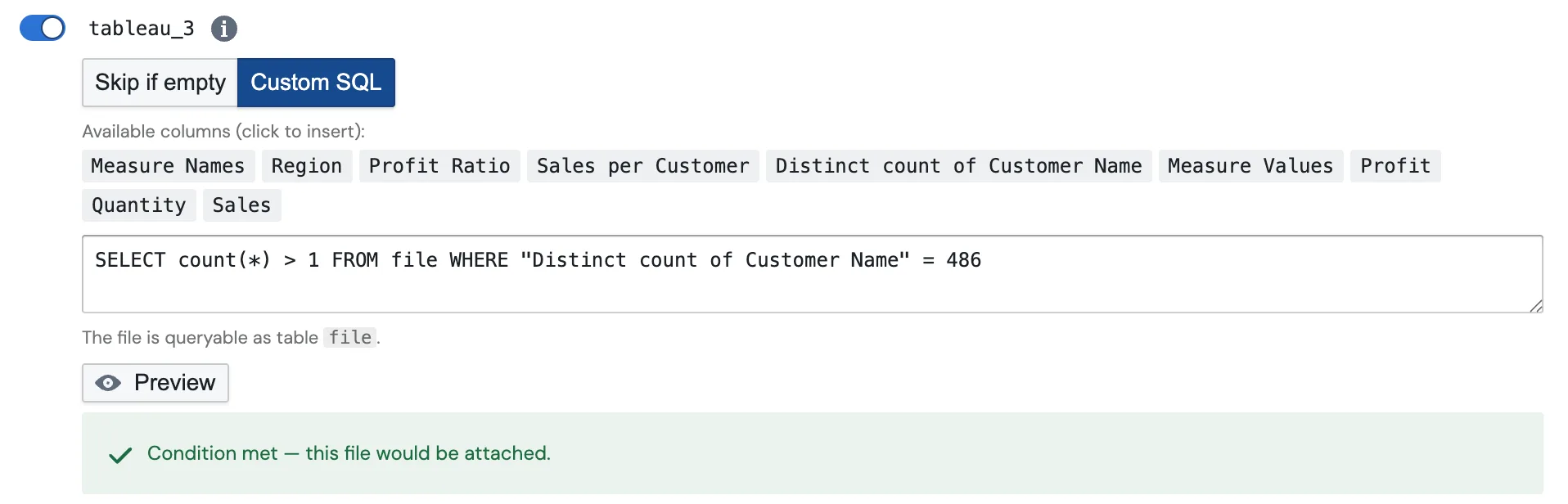
If a column name has spaces or special characters, clicking its chip inserts it already quoted, for example "Distinct count of Customer Name".
Preview before you send
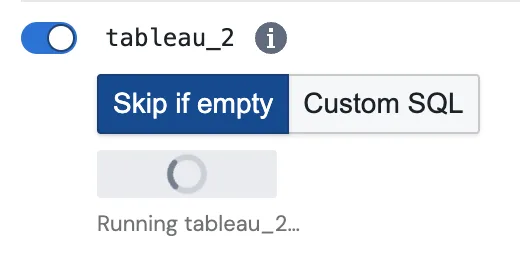
You don't have to run the whole report to test a condition. Click Preview and PushMetrics runs the source task for you, fetches fresh data, and evaluates the condition against it. You'll see a short "Running …" note while the task executes:
Then the result appears right there:
- Condition met, so this file would be attached.
- Condition not met, so this file would be skipped.
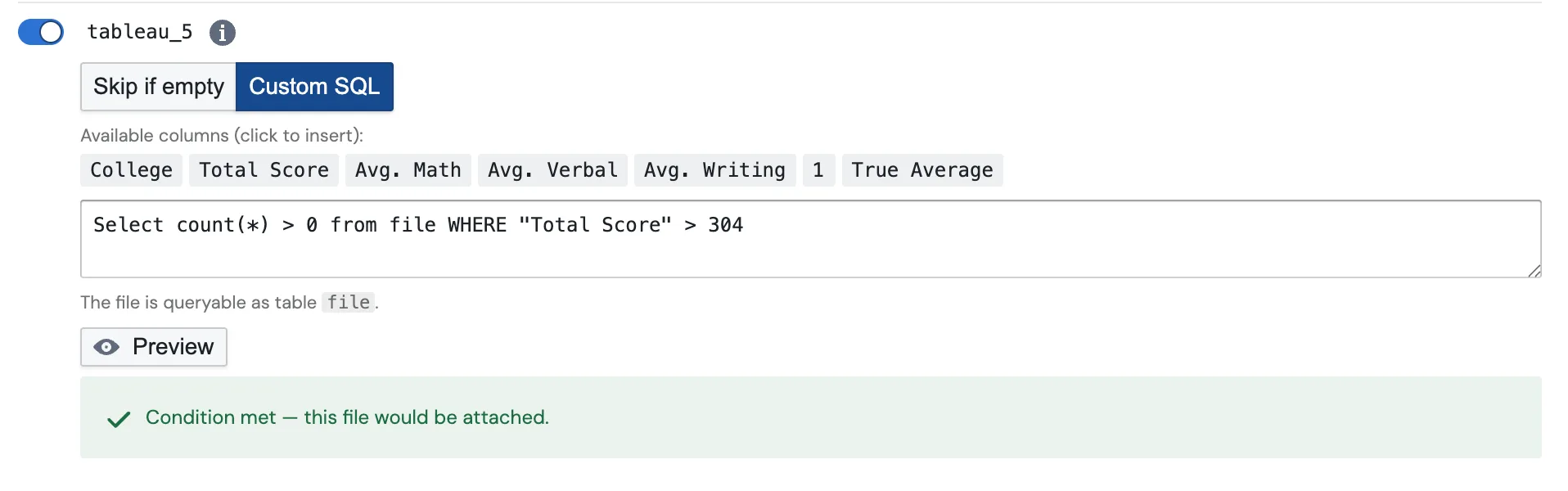
Because Preview always runs the task first, the answer reflects the task's current setup. If you just changed the Tableau view or the filters, you don't need to remember to re-run anything. Preview takes care of it and checks the fresh file.
Use merge fields in a condition
If your report uses Dynamic Report Personalization (mail merge), your condition can reference the same merge fields you use elsewhere in the message, like the email subject and body or the Slack message text. PushMetrics evaluates the condition once per recipient, so each person only gets the attachment when their slice of the data has rows.
SELECT COUNT(*) > 0 FROM file WHERE region = '{{ region }}'
Conditions on Tableau images and PDFs
A Tableau image (PNG) or PDF export is a picture, so it has no rows or columns to query on its own. To gate one on data, open the Tableau task's export options (the gear next to the attachment) and turn on Also fetch data (enables conditions).
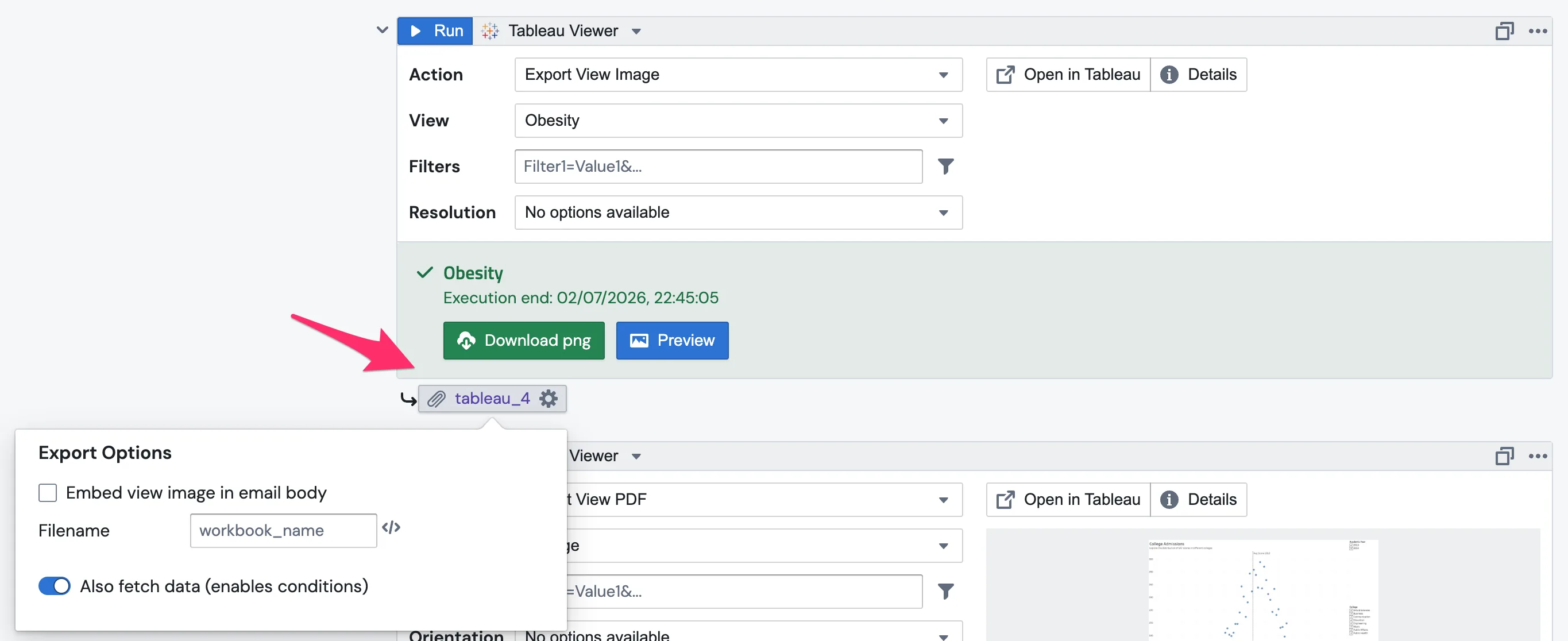
With this on, the task also pulls the view's underlying data when it runs. Now you can gate the image or PDF with Skip if empty or a SQL condition. The condition runs against the view's data, and the file you actually send is still the image.
This adds a small extra data fetch to that task's run, so only turn it on for the image or PDF attachments you want to gate. After you enable it, run the task once so the data is available.
One thing to keep in mind on email: if the Tableau task has Embed view image in email body turned on, the image is placed inline in the message instead of being attached, so it won't appear in the Conditional attachments list. Turn embedding off if you want the image sent (and gated) as a file.
Conditions on Tableau workbook PDFs
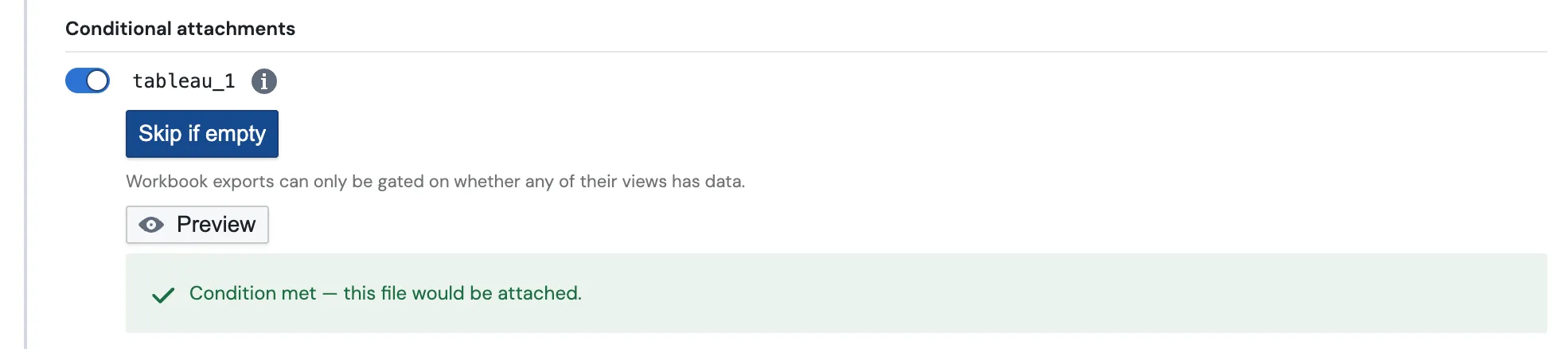
The Export Workbook PDF action bundles every view of a workbook into a single PDF, so there's no single table behind the file to query. Workbook attachments support Skip if empty only, without the Custom SQL option.
Turn on Also fetch data (enables conditions) in the task's export options, and PushMetrics checks the workbook's views when the task runs. The PDF counts as having data as soon as any of its views has rows. It's skipped only when every view comes back empty.
Good to know
- Only the failing attachment is skipped. The other files and the message body still send as normal.
- A broken condition never drops your file. If a condition can't be evaluated, for example because of invalid SQL, PushMetrics keeps the attachment and logs the issue instead of quietly dropping data.
- Every attachment has its own toggle and its own condition.
- Conditions gate individual files. If instead you want to hold back the whole message whenever a CSV or Excel attachment comes back empty, use the task's separate Don't send if any attachment is empty option (available on both Email and Slack). As the name says, it suppresses the entire message when any data attachment has no rows, even if the others have data.
- On a Slack task with no message text, if every attachment is skipped by its condition, PushMetrics skips the whole message rather than posting an empty one.
- Slack attachments require a Slack integration connected through the PushMetrics app. Webhook-style Slack integrations can't send attachments at all, so conditions don't apply there.
Frequently asked questions
What is the file table?
It's the attachment's own contents, made available to your SQL as a table called file. For a CSV or Excel file that's the file's rows and columns. For a gated Tableau image or PDF, it's the view's underlying data.
Do I need to know SQL? No. Skip if empty needs no SQL at all. It just checks whether the file has any rows. Custom SQL is there for when you want a more specific rule.
Why is there no condition on my image or PDF attachment? Turn on Also fetch data (enables conditions) in the Tableau task's export options. Image and PDF attachments only get a condition once that's enabled.
Why is my Tableau image missing from the list entirely (email)? If Embed view image in email body is on, the image goes inline in the message rather than as an attachment, so there's nothing to gate. Turn embedding off to send it as a file.
Why can't I write custom SQL on my workbook PDF?
A workbook PDF spans many views with different columns, so there's no single file table to query. Workbook exports support Skip if empty only. The PDF is attached when any of its views has data.
Does this work on Slack the same way as email? Yes. The Slack task has the same Conditional attachments section under Advanced Options, with the same Skip if empty and Custom SQL modes, Preview, and merge-field support. The only difference is what gets sent: the surviving files are uploaded to the Slack channel instead of attached to an email.
Does this affect scheduled runs? Yes. Conditions apply to every run of the report, whether it's scheduled, triggered by a webhook, or started with Run Now. Each run checks the files it just generated.
What happens to an attachment with no condition? It's always attached, just like before. Conditions are opt-in per file.
Which tasks can I add a condition to? Any task that produces a CSV or Excel attachment: SQL Query, Tableau Export, Explore, File Download and Data Source. Tableau image and PDF exports are supported too once you enable Also fetch data on the Tableau task, and workbook PDFs support the Skip if empty check. Word and Google Slides exports don't support conditions.